Multiple Display
Multiple display is an UI control in AlignPlus which can display all images and graphics for one calibration or feature finder. In AlignPlus program, each calibration or feature finder in the configuration wizard will have one independent multiple display under Displays category of navigation tree in setup mode.
Here is an example of one feature finder display:
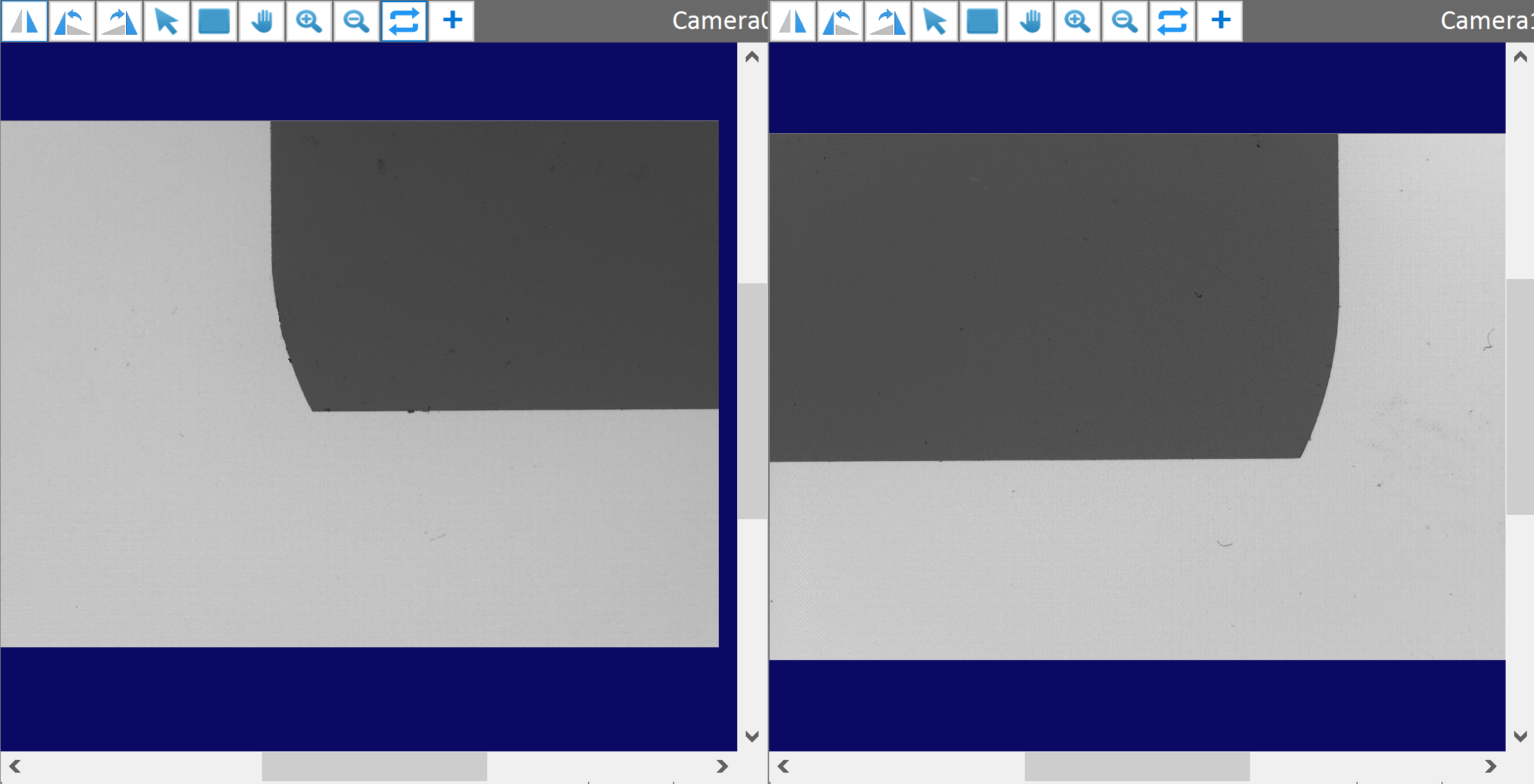
| Item | Description |
|---|---|

|
Mirror image horizontally |

|
Rotate image 90 degrees to left side |

|
Rotate image 90 degrees to right side |

|
Choose pointer |

|
Show only current image in MultipleDisplay, after it is clicked, the icon will be come  , by clicking it again, it will change back to and show all images , by clicking it again, it will change back to and show all images |

|
Pan image |

|
Zoom in image |

|
Zoom out image |

|
Reset all settings |

|
Show cross line centering at image center. |
Live Image or Acquire Once
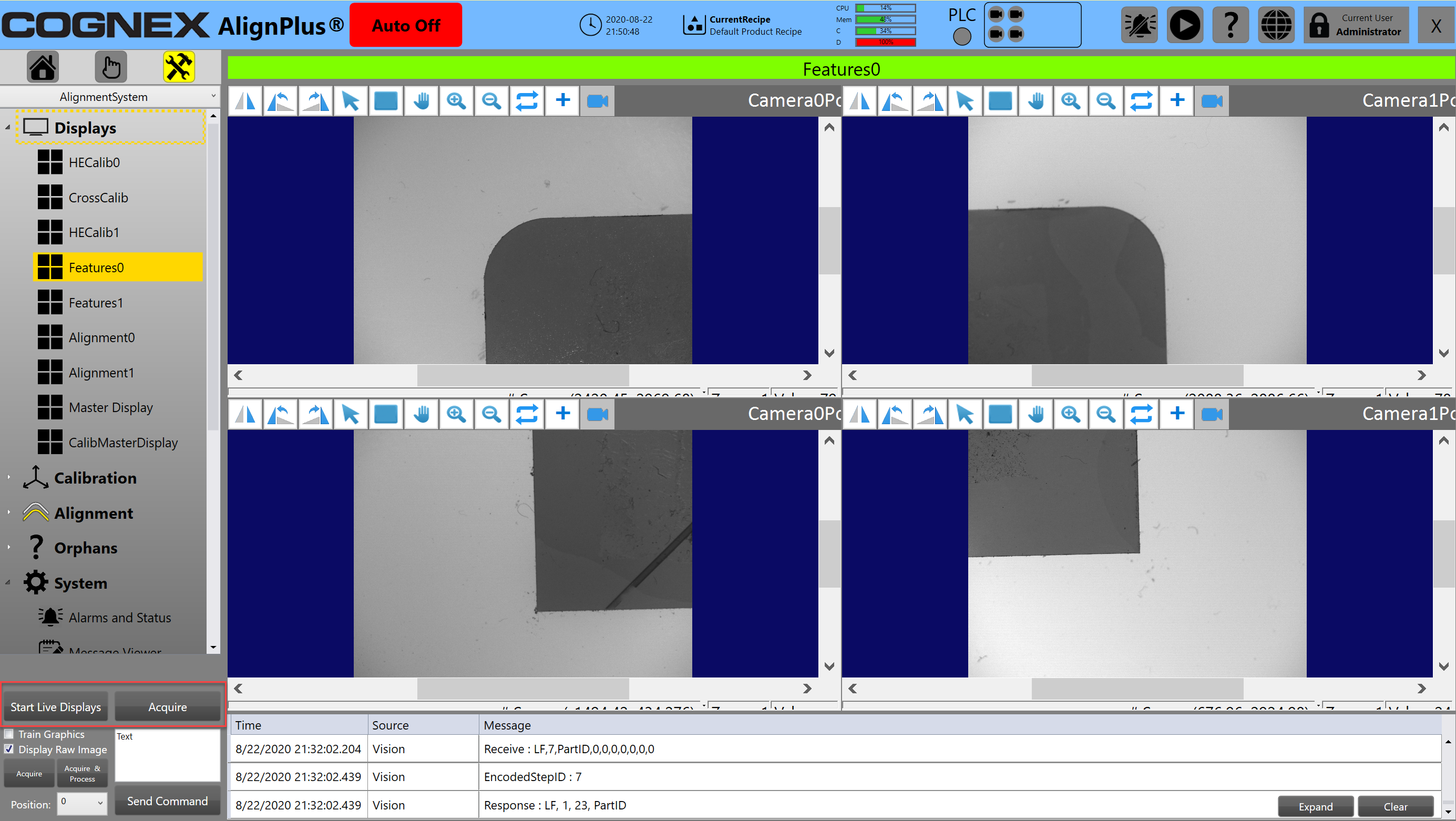
Multiple display goes with function panel in setup mode which provides live or acquire once function.
-
Live Image
Choose one multiple display, then click Start Live Display button to trigger live image display for selected display, once it is in live mode, the button will change to Stop Live Display for you to stop anytime.
-
Acquire
Choose one multiple display, then click Acquire to trigger selected display to acquire images once from collected cameras.
Image Acquire and Process
Without sending a command, a calibration or feature finder task can be triggered using images acquire and/or process function in functional panel under multiple display.
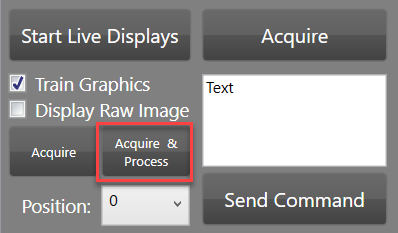
If current multiple display only needs to acquire images at one position, then just click Acquire & Process to run trigger the calibration or feature finder task behind to acquire images and run vision task.
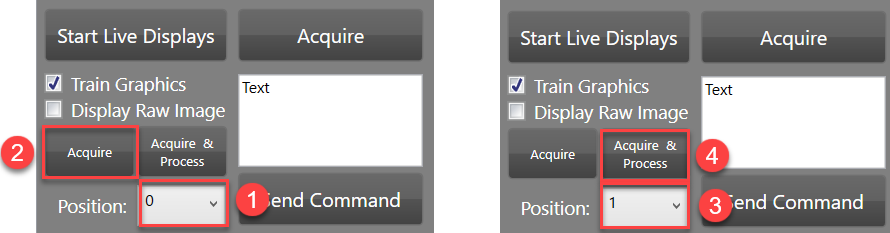
If current multiple display requires camera shuttling, then choose a position index first and click Acquire button if it's not the last position and click Acquire & Process at the last position. Take a cross calibration display for example, it needs to acquire images first at position0, and acquire and process at position1 to extract features and run cross calibration calculation, then follow the steps marked below to run cross calibration manually.
Show Graphics
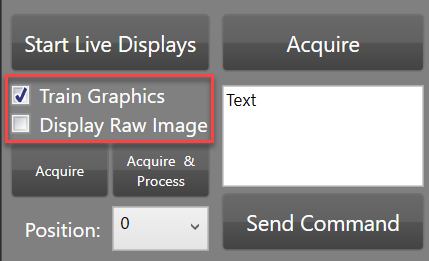
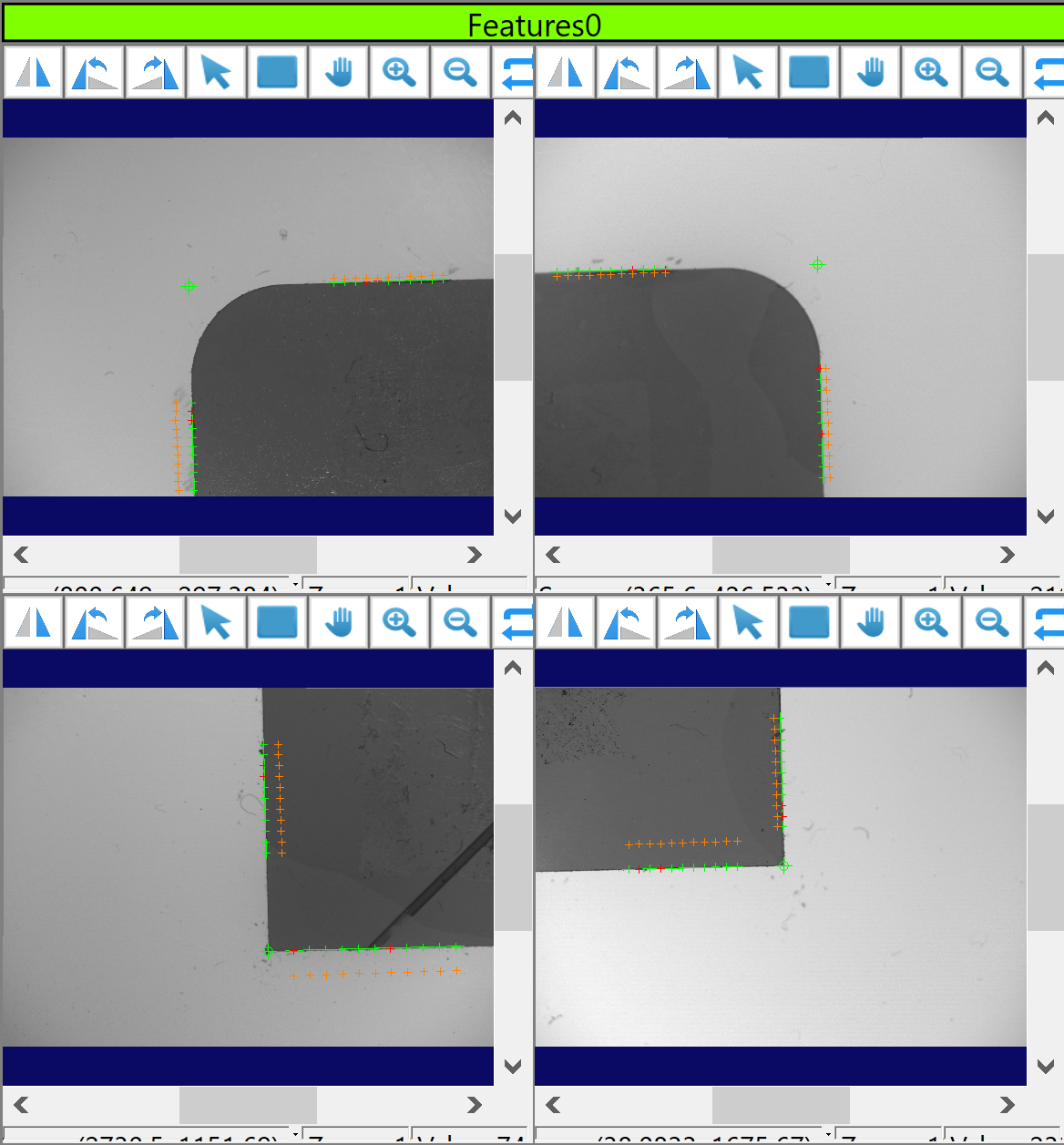
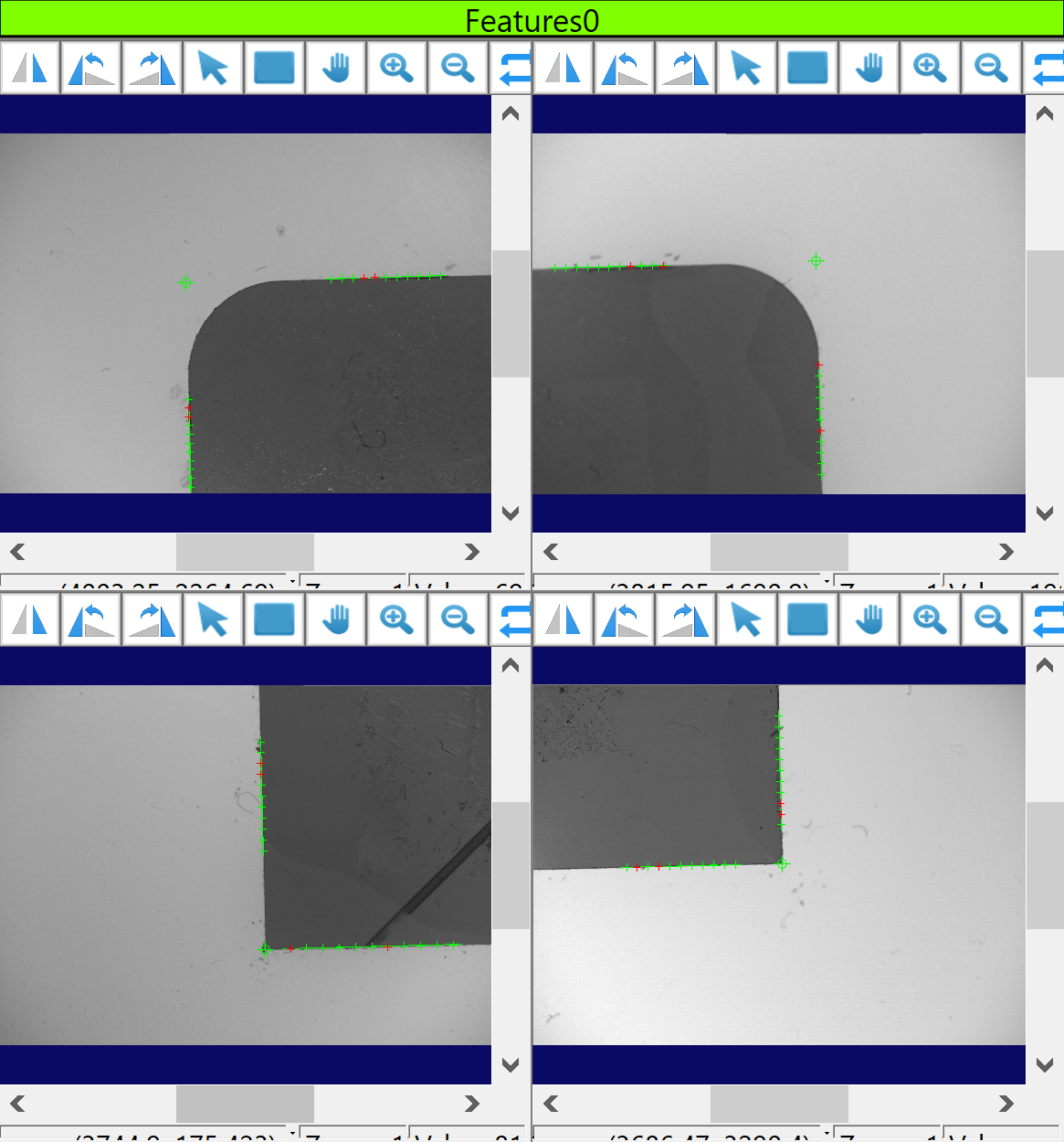
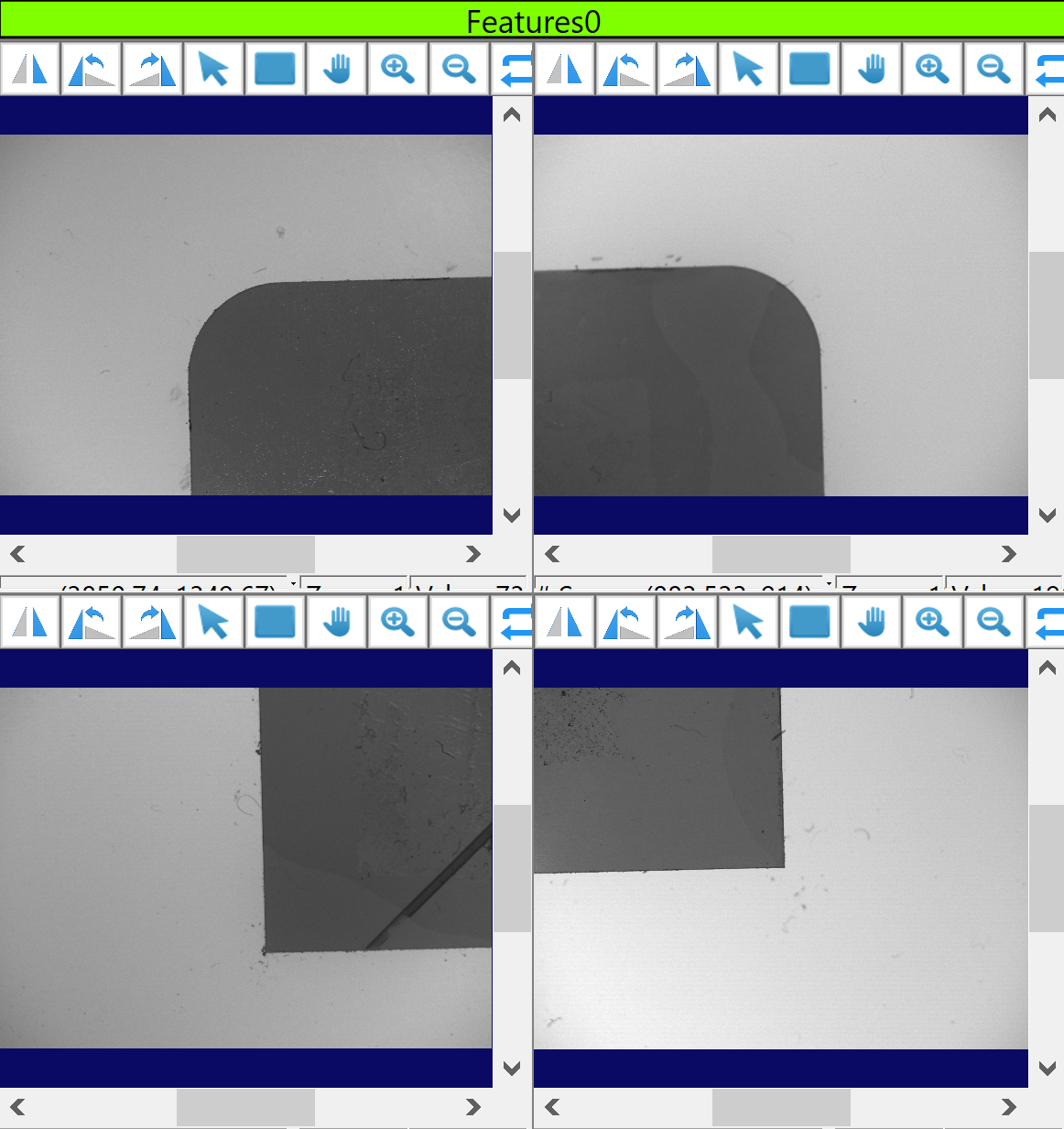
By default, multiple display will display both trained features and run time features during run time. If you want to hide trained features, check Train Graphics off on function panel. Or if you want to show only raw images, check on Display Raw Image, then all graphics will be hidden.
Here is an example of the different graphic displays:
| Default | Hide Train Graphics | Display Raw Images |
|
|
|